
SQL editor
The SQL editor lets you run a single query or a whole script, then analyze the result, the duration and the Firebird plan.
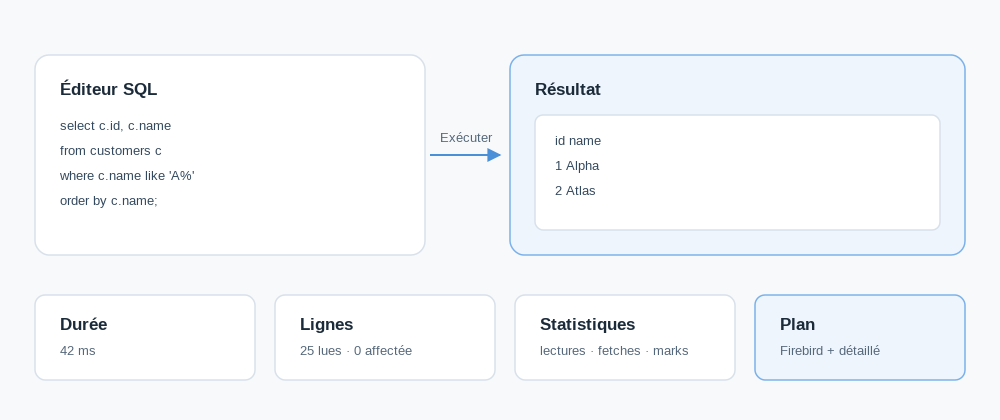
Running a query
- select a database;
- open the SQL tab;
- enter the query;
- click
Execute.
sql
select c.id, c.name
from customers c
where c.name starting with 'A'
order by c.name;
Multiple statements
The ; separator lets you chain several statements:
sql
create table t_test (id integer, name varchar(50));

insert into t_test (id, name) values (1, 'un');
insert into t_test (id, name) values (2, 'deux');

select * from t_test order by id;
Each statement is committed separately.
After execution
Below the editor:
text
Durée : 42 ms - Lignes : 25 - Affectées : 0
Lectures : 12 - Écritures : 0 - Fetches : 148 - Marks : 3 - Mémoire : 2048 Ko - Buffers : 2048
The Execution plan button shows, for each statement:
- the duration;
- the rows read;
- the rows affected;
- the Firebird plan;
- the detailed plan with estimates.
Plan example
PLAN (CUSTOMERS CUSTOMERS_INDEX_NAME INDEX (CUSTOMERS_INDEX_TERME_CA_CI_AI))
Snippets
The Snippets button inserts a SQL template prepared for the database's Firebird version.
Snippets are available:
- from the SQL editor;
- from the migration workshop;
- in the
Tools > SQL snippetsmenu.
Formatting
The Format button applies SQL formatting. The options let you set:
- keyword capitalization;
- indentation;
- line breaks;
- comma style.
Security
Execution is controlled by:
- the user's permissions on the database;
- the SQL guard;
- demonstration mode, which is read-only.
Destructive scripts
DELETE, UPDATE, DROP and ALTER really execute. Check the database and the WHERE clause before running.