
Schema explorer
The explorer is the main entry point: it shows the registered databases, their content and the details of each object.
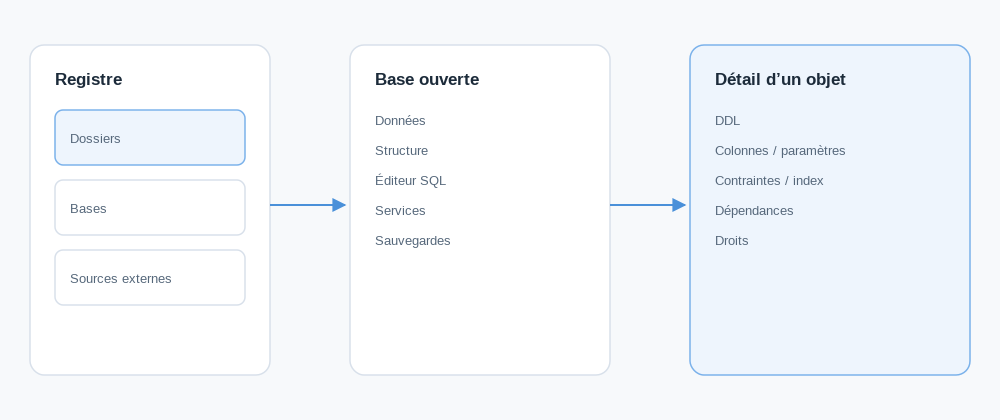
Database registry
The left-hand panel contains:
- folders used to organize databases;
- Firebird databases, internal or external;
- external sources.
Available actions:
- create a database;
- create a folder;
- add an external source;
- filter the list;
- rename or delete a folder;
- move a database by drag and drop.
Opening a database
Clicking a database opens:
- the structure;
- the data;
- the database tools;
- the SQL editor;
- the schema objects.
Object details
The details open in a tabbed window. The DDL tab comes first.
| Tab | Content |
|---|---|
| DDL | SQL definition of the object |
| Columns | columns, types, NULL, default, comment |
| Parameters | input/output of procedures and functions |
| Constraints | keys, rules and references |
| Indexes | simple and computed indexes |
| Dependencies | objects used or calling objects |
| Permissions | granted privileges |
Computed indexes
For a COMPUTED BY index, the column list is empty by nature. FbExpert displays the expression in a dedicated column:
Nom         : CUSTOMERS_INDEX_TERME_CA_CI_AI
Unique      : Non
Expression  : (TERME collate fr_ca_ci_ai)
Comments
Firebird comments are displayed and can be edited:
- table or view comment;
- column comment;
- parameter comment;
- object comment.
On a table page, the comment appears above the tabs (and therefore also in Columns) and is edited in place: input field and Save button, as in the object card for views and procedures. Without alter permission — and in demonstration mode — only the text is displayed.
DDL and execution
From the DDL tab:
- copy the definition;
- modify the definition according to your permissions;
- execute the DDL;
- normalize to
CREATE OR ALTER.
WARNING
A DDL change applies to the database immediately. Check the target database before executing.
Closing
The details panel closes:
- with the cross;
- with
Esc; - by clicking next to the panel.